

Compress Video Without Uploading It: A Free Browser Compressor for Product Videos
The Quince Video Compressor is a free web page that makes video files smaller inside your browser, so the video never leaves your computer. There is no upload, no account, no queue and no watermark. Three buttons cover email, web and final delivery, and an Advanced panel gives full control over codec, size and data rate.
Here is the situation it was built for. A studio sends you the launch film for a product that is not announced yet. The file is 1.8 GB. You need a version small enough to email to your sales director, another for the website, and a vertical cut for a story. The usual answer is an online converter, which means uploading an unreleased product to a server you know nothing about, then waiting in its queue.
We make 3D product animation, and we hand over files like that every week. So we built the tool we wanted our own clients to have.
How can you compress a video without uploading it?
By letting the browser do the work. Modern browsers have video encoders built in. The WebCodecs API lets a web page use it to “encode and decode video and audio in the browser efficiently,” with hardware acceleration where the graphics card supports it, in MDN’s words.
The Quince Video Compressor reads your file from disk, decodes it, compresses it with that encoder, and builds the new file in memory for you to download. Reading and writing the video files is handled by Mediabunny, an open source media toolkit for the browser. At no point is the video sent to a server, and closing the tab removes it from memory.
That makes it different from most tools you find when you search for an online video compressor. Many of them advertise “no signup” and an encrypted connection, but the encrypted connection is there because your file is being uploaded to them.
Which setting should you use?
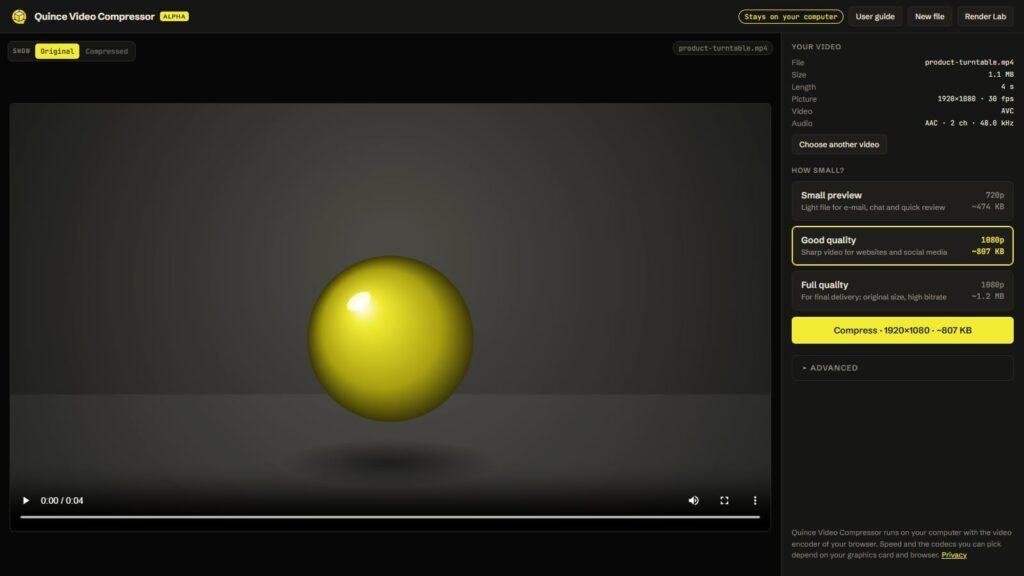
For most people, one of three buttons. Each one shows the picture height and about how big the file will be before you start.
| Button | Picture | Audio | Best for |
|---|---|---|---|
| Small preview | Up to 720p, up to 30 fps, low data rate | 96 kbps | Email, chat, quick review rounds |
| Good quality | Up to 1080p, up to 30 fps, medium data rate | 160 kbps | Websites, social media, presentations |
| Full quality | Original size and frame rate, high data rate, a keyframe every second | 256 kbps | Final delivery to a client or broadcaster |
All three make an MP4 with H.264, the combination that plays on practically every computer, phone and TV. None of them ever makes a video bigger than it was or raises the data rate above the original’s. The downloaded file keeps the original name with the choice added, so launch-film.mp4 becomes launch-film-preview.mp4, launch-film-balanced.mp4 or launch-film-final.mp4.
How do you compress a video in four steps?
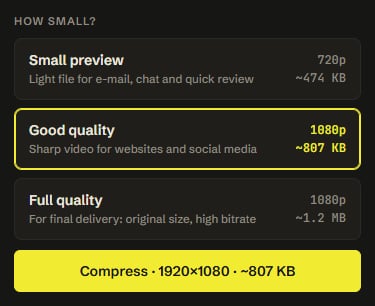
Drop the file, pick a button, compress, compare.
-
Open the page and drop a video on it, or press Choose a video. MP4, MOV, M4V, WebM and MKV files are accepted.
-
Press Small preview, Good quality or Full quality. The expected size updates on the button and on the Compress button.
-
Press Compress. A progress window shows the time spent and how long is left.
-
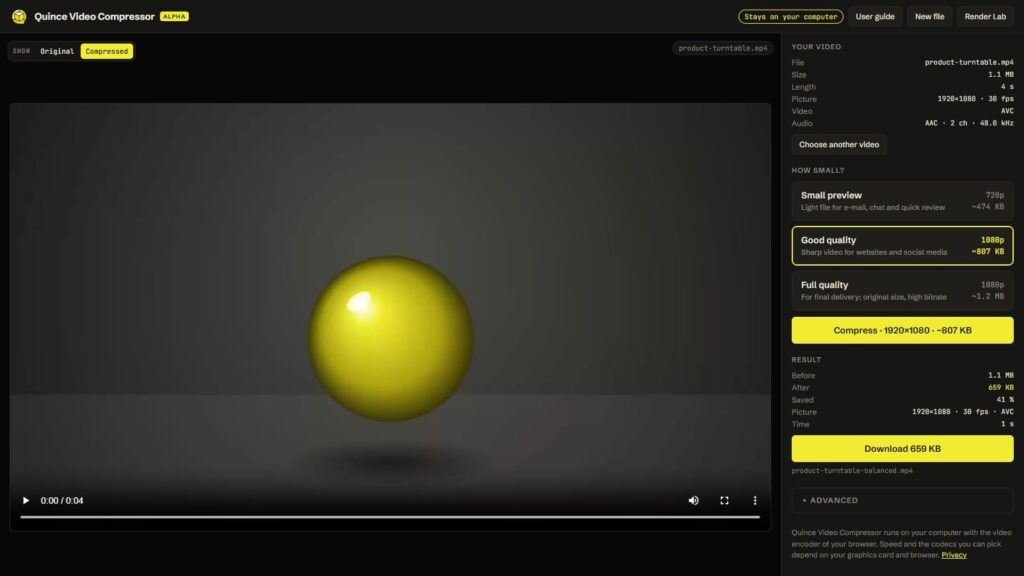
Compare, then download. The Original / Compressed switch shows both versions at the same moment in the video, and switching is instant because both stay loaded. When it looks right, press Download.
What can you change in Advanced?
Everything a delivery spec usually asks for. Changing any option there switches from the preset to your own settings.
Container and codec. MP4 or WebM, and the video codec inside it. Only the codecs your browser can really encode are offered.
| Codec | Size for the same quality | Plays on | Use it for |
|---|---|---|---|
| H.264 | Baseline | Practically everything | The safe default, and anything you send to a client |
| H.265 / HEVC | Smaller | Newer devices, fewer players | Files for a known, modern player |
| VP9 | Smaller | Web browsers | WebM video on your own site |
| AV1 | Smallest | Newer browsers and devices | Web video where size matters most. Slow to encode |
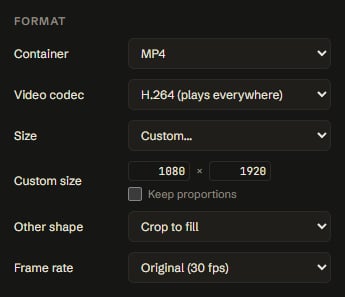
Size and shape. Keep the original, pick a lower height from 2160p down to 360p, or type a custom width and height up to 8192 pixels. Switch off Keep proportions to change the shape, for example from 16:9 to a vertical 1080 by 1920, then choose how it fits: crop to fill, black bars or stretch.
That is useful, but be honest with yourself about what a crop does. Cutting a vertical out of a wide product film throws away two thirds of the frame, and the product often ends up half outside it. A vertical version made in 3D is a different thing: the camera is moved in the scene so the product fills the tall frame. For a launch film, it is worth asking your studio for that, especially if most of your views come from Meta and TikTok.
Data rate. Set the video bitrate in Mbps, or type a target size in MB and the bitrate is worked out from the length of the video. That is the setting for “it has to stay under 25 MB,” which is the attachment limit for personal Gmail accounts. For a 60 second video, 25 MB works out to roughly 3 Mbps for picture and sound together.
The other data rate options are for delivery specs. Variable bitrate gives better quality per megabyte. Constant bitrate keeps a steady stream for broadcast and live systems. Keyframes set how often a full picture is stored, from every half second to every 10 seconds. The encoder can be left on automatic, set to the graphics card (fast) or to the processor (slower, steadier).
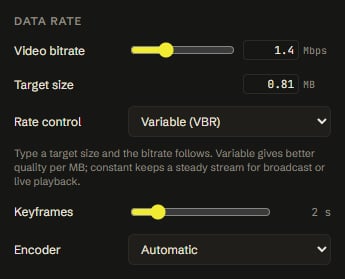
Frame rate and audio. Keep the original frame rate or lower it to 60, 30, 25, 24 or 15 fps. Keep the audio, re-encoded at 48 to 320 kbps, or remove it.
Why does a compressed video show banding, and how does grain help?
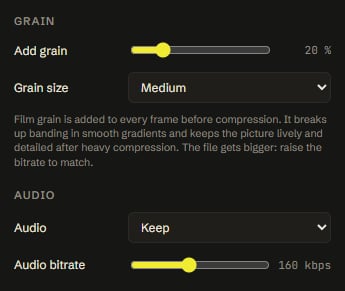
Heavy compression flattens smooth gradients into visible steps, and a little film grain breaks those steps up. Product films are full of soft gradients: a studio backdrop fading from light to dark, a sky, light rolling across a curved housing. To save space, the encoder simplifies areas that look almost flat, and a smooth fade turns into bands of slightly different gray.
The Add grain option puts fine film grain into every frame before compression, from 0 to 100 percent, in fine, medium or coarse size. The grain moves from frame to frame like real film grain. It hides the steps and keeps the picture looking detailed instead of plastic.
Grain costs space, because noise is the hardest thing to compress. Use it with a higher bitrate, and use it on the files that will be seen large, not on a 720p preview for chat.
How do you make everyone on a team compress the same way?
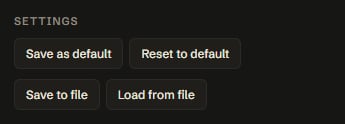
Save your settings to a small file and share it. Save to file writes a quince-video-preset.json with your settings, never the video. A colleague opens it with Load from file and gets the same codec, size and data rate. You can also save your settings as the default in your browser, and the last settings you used are remembered between visits.
What are the limits?
It is a browser tool on your own computer, and that sets a few honest limits.
-
Chrome or Edge on a computer works best. Other browsers may work with fewer codecs. A phone is not the target.
-
ProRes cannot be opened. Browsers cannot decode ProRes files from After Effects, Premiere or DaVinci Resolve. Export an H.264 MP4 first. The tool tells you up front instead of failing after minutes.
-
Some HEVC files cannot be opened on Windows. HEVC from phones and cameras needs the HEVC Video Extensions from the Microsoft Store, or a graphics card that supports it.
-
The finished file must stay under about 2 GB, because it is built in memory. The original can be much bigger.
-
Keep the tab open and in front while it works. Browsers slow down hidden tabs.
-
Every compression loses something. Full quality is meant to look the same to the eye, but it is still a new encode. Keep the original.
Before you compress a final delivery file
-
Keep the original master somewhere safe. Never compress your only copy.
-
Check the format. If it is ProRes, export an H.264 MP4 first.
-
Know the spec you are delivering to: codec, size, frame rate, bitrate, keyframes.
-
Decide how many versions you need, such as preview, web and final, and whether any of them is vertical.
-
Use Chrome or Edge, close heavy apps, and keep the tab in front.
-
Compare original and compressed at a few moments with gradients and fast motion before you send it.
Common mistakes
Compressing a compressed file. Each new encode loses a little more. Always start from the original master.
Sending the wrong version. The small preview is for a quick look. A client, broadcaster or ad platform should get the full quality file.
Picking the newest codec for a file someone else will open. AV1 and H.265 make smaller files, but older laptops and some players cannot play them. When in doubt, H.264.
Treating a crop as a vertical version. A center crop of a wide film usually cuts the product. Use it for a quick social post, not as the vertical edit of your launch.
Switching tabs and walking away. A hidden tab is slowed down by the browser. Let it finish in front.
FAQ
Is the Quince Video Compressor free?
Yes. No account is needed, and there is no watermark and no queue.
Is my video uploaded anywhere?
No. The file is read from your disk, compressed by your own computer and saved back. Nothing is sent to a server.
How do I get a video under 25 MB for email?
Open Advanced and type 24 in Target size, leaving a little margin. The bitrate is worked out from the length of the video. For very long videos, also lower the size to 720p so the picture stays clean.
Which format plays everywhere?
MP4 with H.264. All three quick buttons make exactly that.
Can it compress ProRes files?
No. Browsers cannot read ProRes. Export an H.264 MP4 from your editing software first, then compress that.
Does it work on a phone?
It is made for Chrome or Edge on a computer. Phones may open it but are not the target.
Try it, and tell us what is missing
The compressor is at lab.quincemedia.com/video, and the user guide covers every option. It is made by the same studio as Quince Render Lab, our free path tracer for product shots. If you need the film itself, not just a smaller copy of it, send us your CAD. We will tell you what it would take, including when you do not need a studio at all.
Related Articles
Quince Render Lab: Free Online 3D Rendering for Product Shots
How Oura Uses 3D Product Animation to Sell a Titanium Ring
How to Use 3D Animation on Kickstarter Without Getting Your Campaign Cancelled
Product Hero Shots: What They Are, Why Brands Now Render Them in CGI, and What They Cost
What Software Can You Use to Create 3D Product Images for Amazon Listings?
Your Product Renders Are Sitting in a Folder. Here Is How to Turn Them Into Ads That Convert on Meta and TikTok



 Rachel A